Finding a low-cost, fast, and truthworthy PDF editor is a struggle. What if you only need to edit 1 PDF, or don't want to pay $20 per month for an Adobe subscription? It's been a huge goal of mine to provide this answer to users. However, it varies based on what the user is trying to accomplish with their PDF editing (and what they're willing to pay).
iLovePDF is the clear winner for users who need to edit and fill out multiple PDFs. Premium tier users can fill fields, fill signatures, create new fields of any type, and edit text. The premium tier is cheap at only $5/month. Free users also have access to a wide variety of PDF editing features, such as password protecting their PDF and converting image files to a PDF. No download required, this tool is browser-based. iLovePDF's PDF editor and other tools are also extremely fast. Free-tier users have access to premium PDF editing features on their first visit. The website is long-standing and has transparent origins in Barcelona.
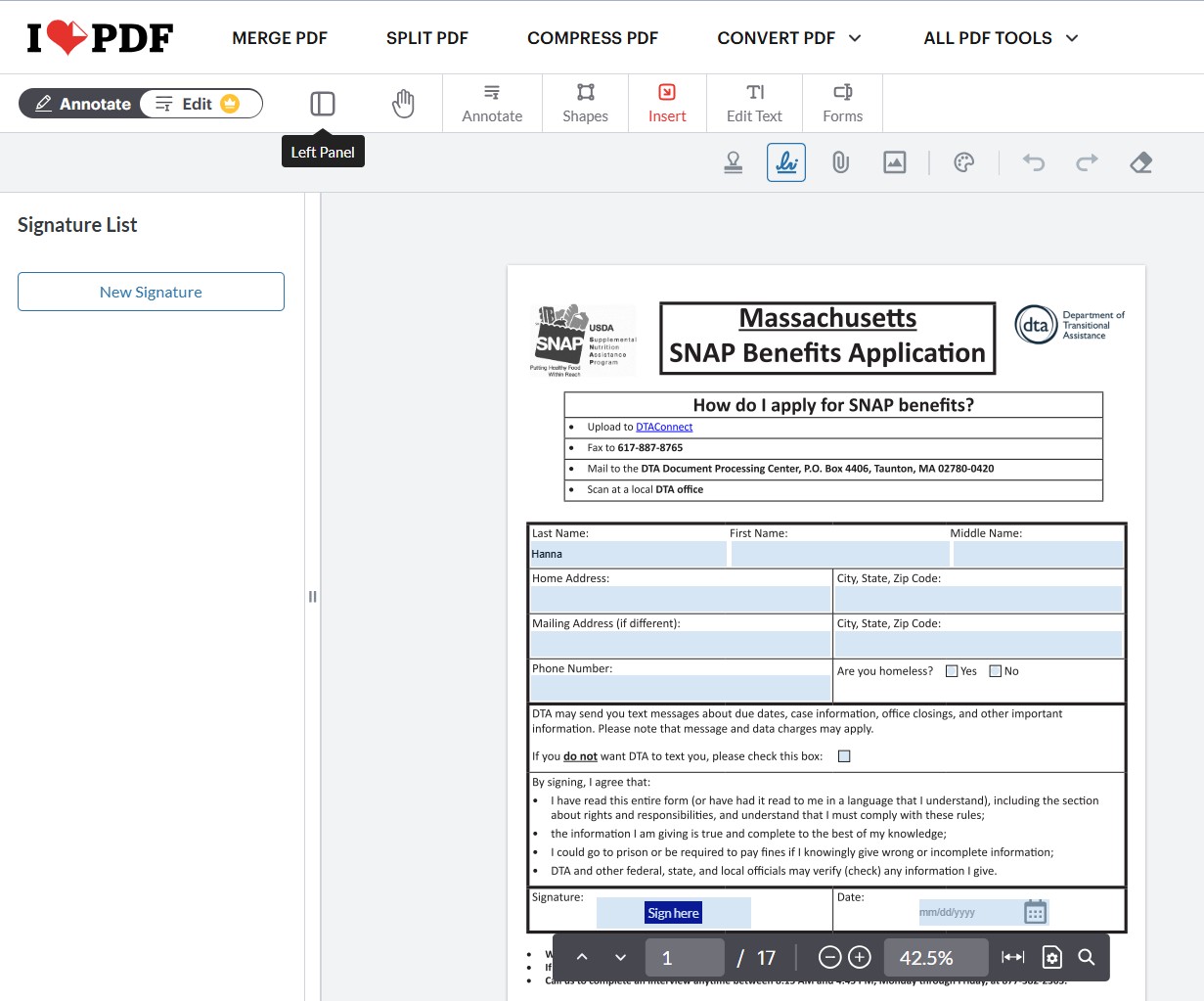
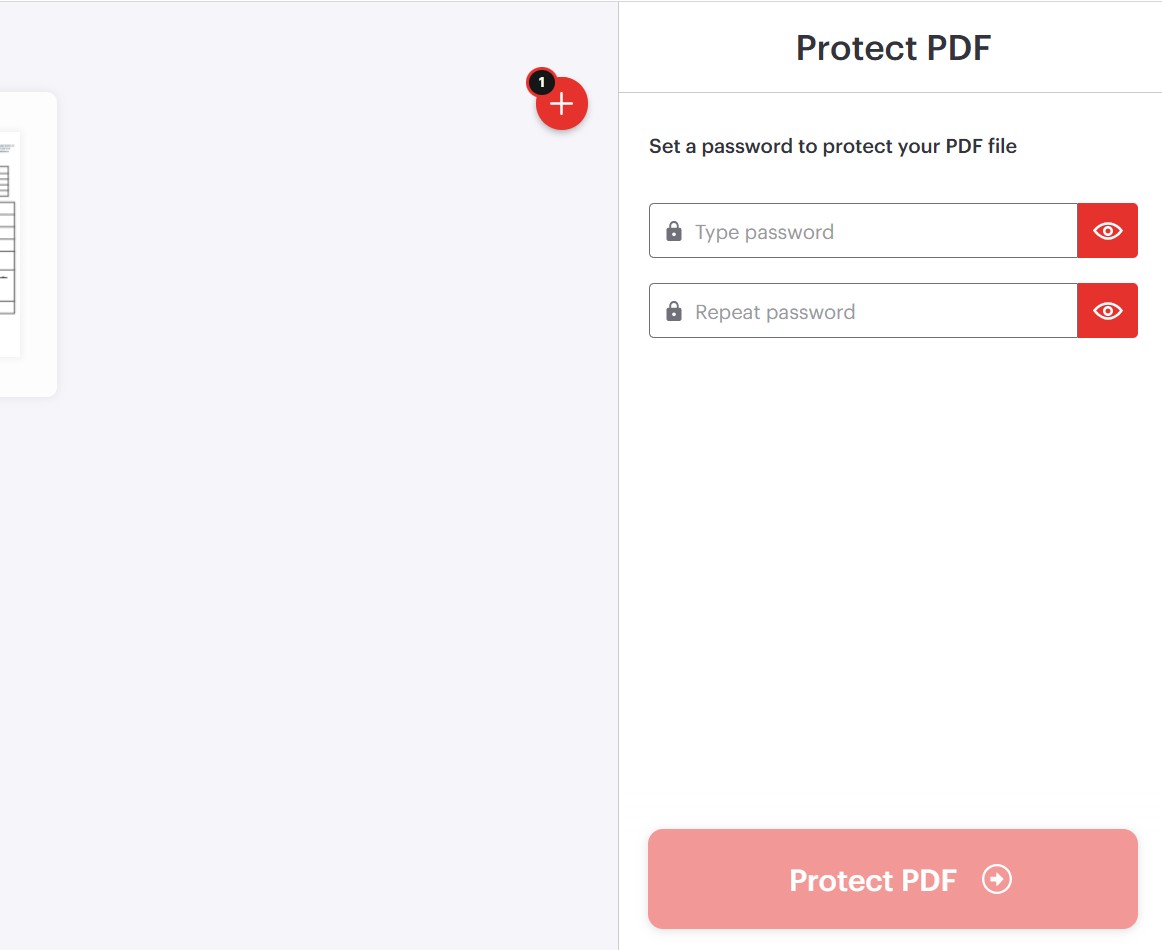
Free tier users can only "annotate" PDFs – they're only able to add new text, images, and drawings, and are not able to fill fields or edit existing parts of the PDF.
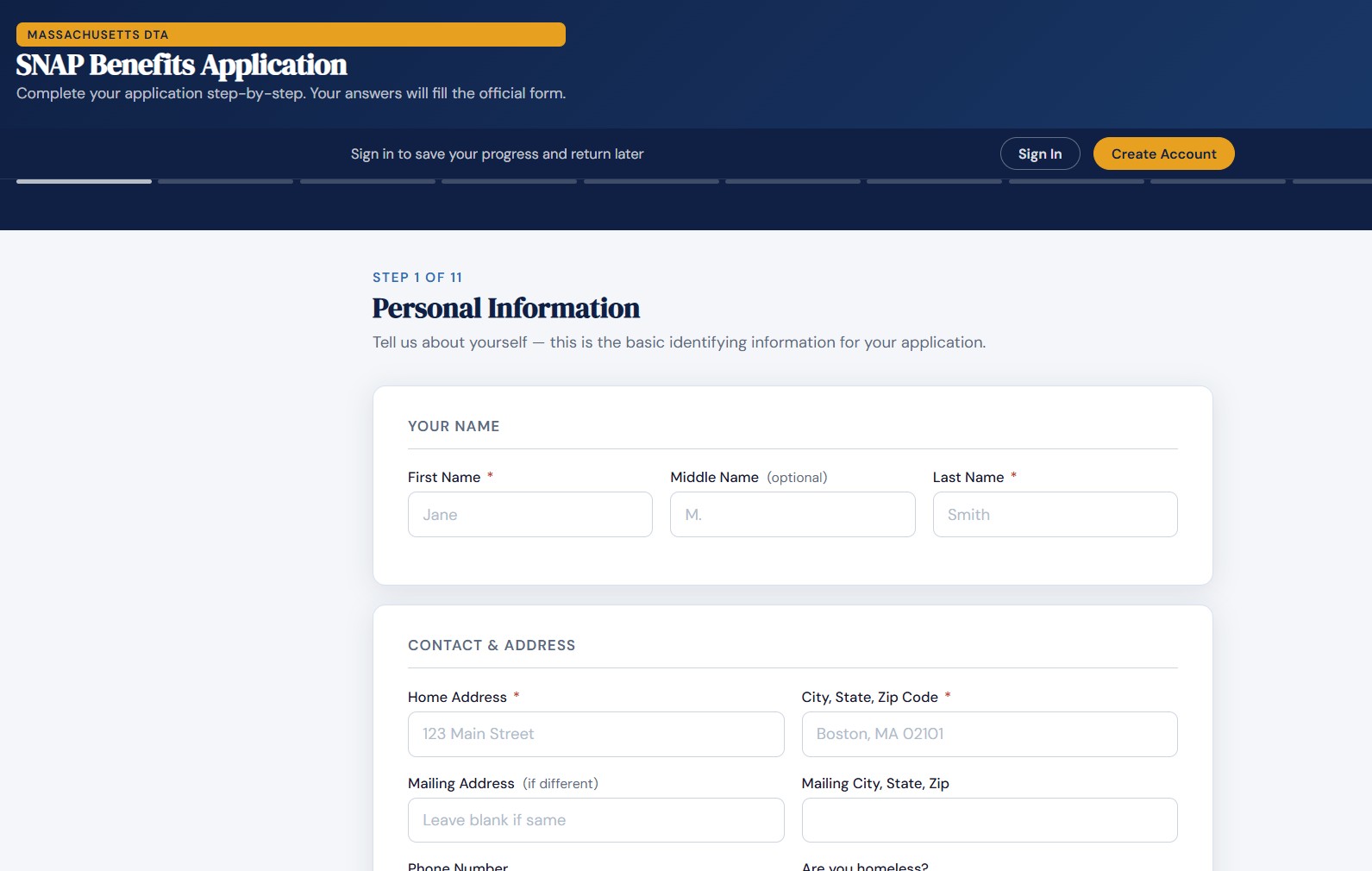
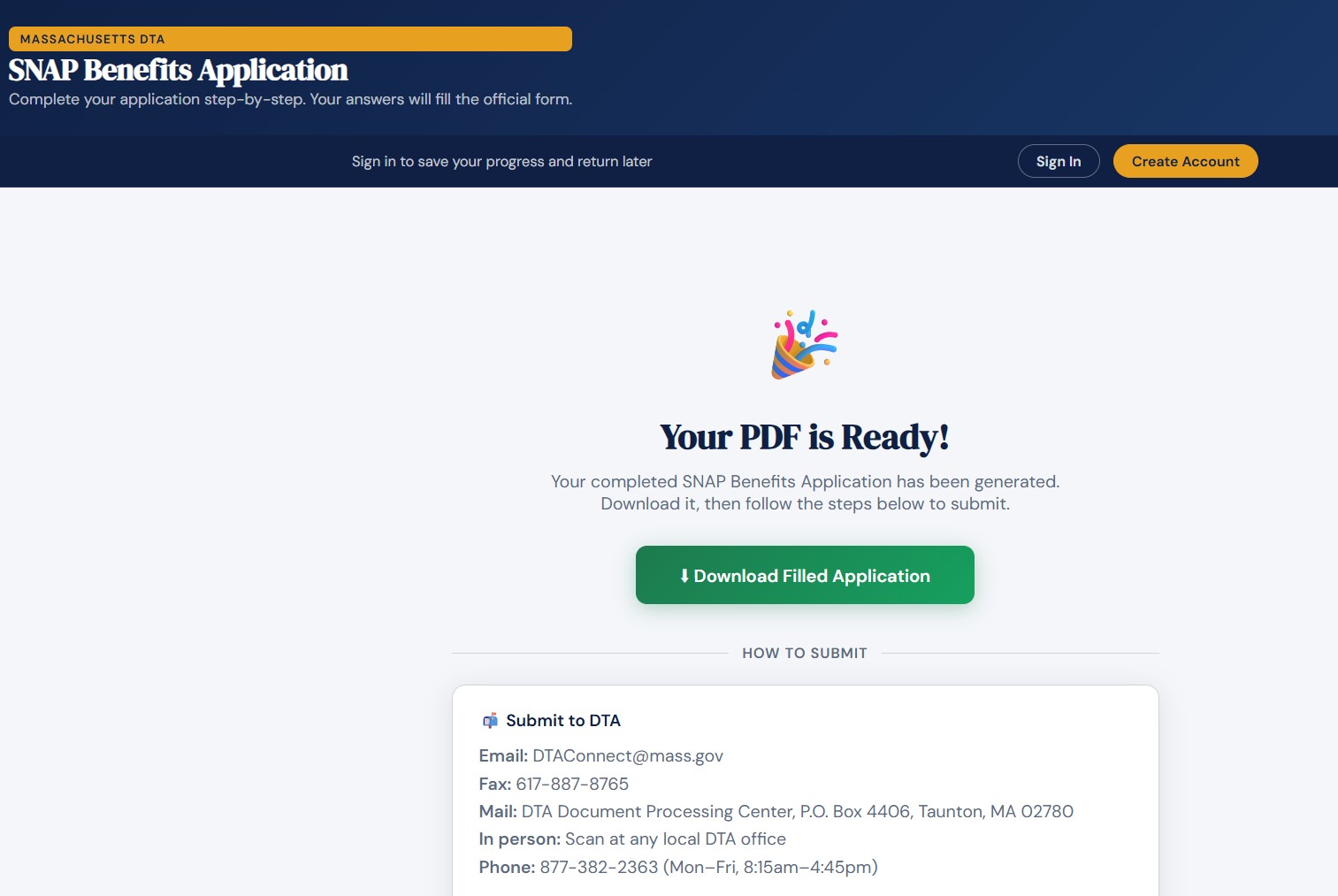
EasyFill is the clear winner for users who need to quickly fill out a PDF form. Users use one of EasyFill's templates or upload their own PDF. It finds the fields and guides the user to answer them in a readable, question-based format. EasyFill also skips fields which are irrelevant to the user. By showing only relevant fields to the user and not requiring them to edit the PDF themselves, the service saves users time. The service is also very low-cost: users can utilitize EasyFill's templates for free, or can upload their own PDF for $1.
EasyFill makes finishing a multi-page PDF form much faster. At the end, they download their fully filled PDF. Users can also create an account to save their progress. No downloads required.
EasyFill could add more PDFs to their template collection. Users cannot use EasyFill to annotate PDFs/edit the existing text of a PDF.
Paid tier users have access to excellent features, such as compressing their PDFs and adding new pages. Users can also upload from their Google Drive or OneDrive accounts. All users also get access to free cloud storage, with free users getting 2 GB of cloud storage. Free tier users can also organize pages and combine files. No download required for the web version.
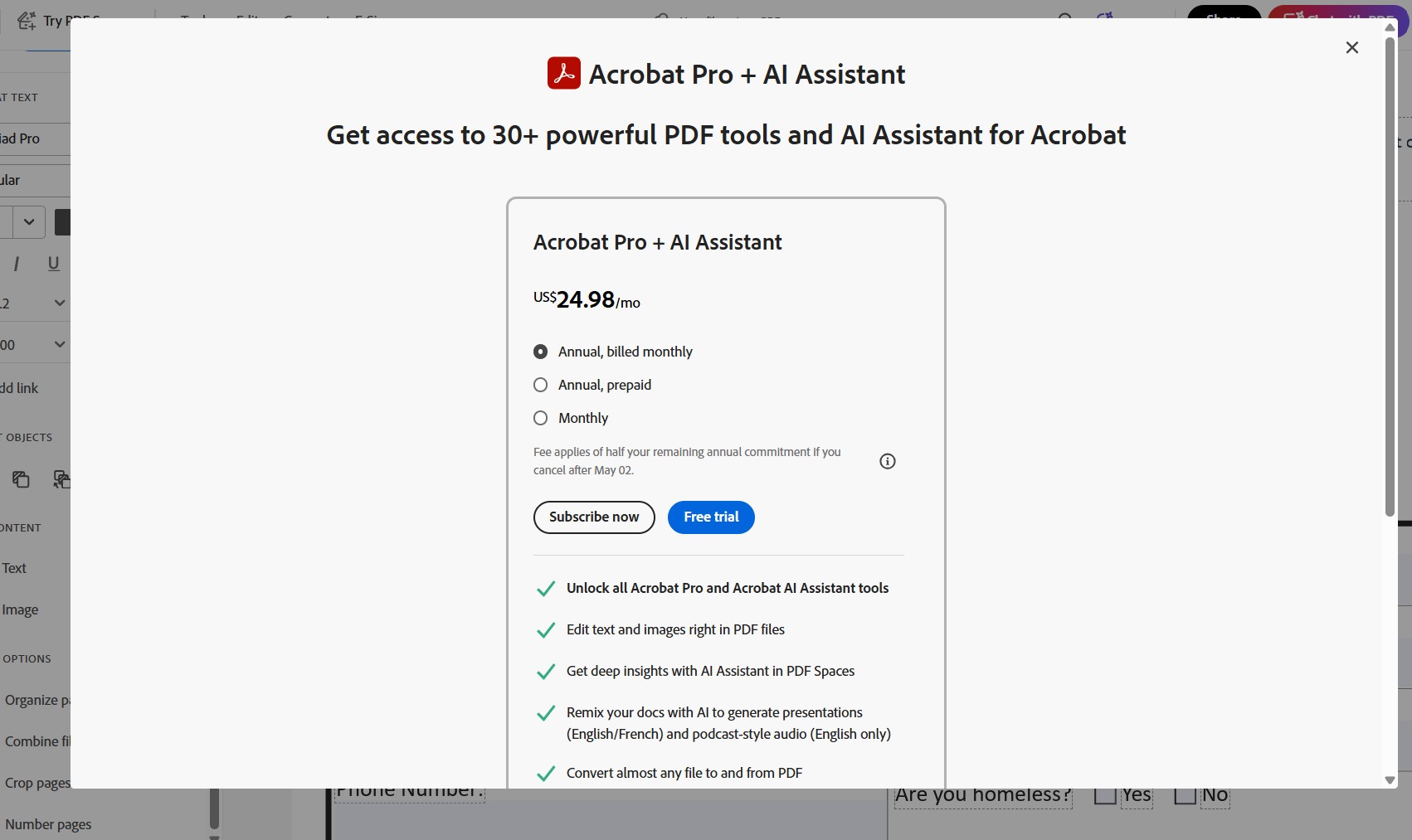
Adobe Acrobat Online's free version is, unfortunately, heavily restricted. Users can only fill PDFs, and cannot use the paid tier functionalities such as fill and sign, adding new text, and password protecting their PDFs. Regardless of tier, the website is quite slow, especially on mobile. Acrobat Online has a tendency to buffer for several seconds, such as when adding text to a new section. The basic paid tier is also expensive at $19.99/month.
Has a similar set of features to Adobe Acrobat: users can add signatures, text, images, links, and watermarks. This is extremely generous for completely free software.
Requires downloading their software, as PDFGear is not available on the web. Data privacy and the origins PDFGear remain questionable. They do not provide clear answers on where their company is based or how data privacy is handled. There is a possibility this software is adware, spyware, or even malware. In my experience, their user interface is also more confusing than Adobe's.
Has similar features to the Canva free tier. Can add text, elements (images), and can draw on PDFs. Canva loads more quickly than Adobe Acrobat Online. Canva's user interface is also extremely intuitive and clean, with first-time users being able to quickly learn how to use the editor. No download required.
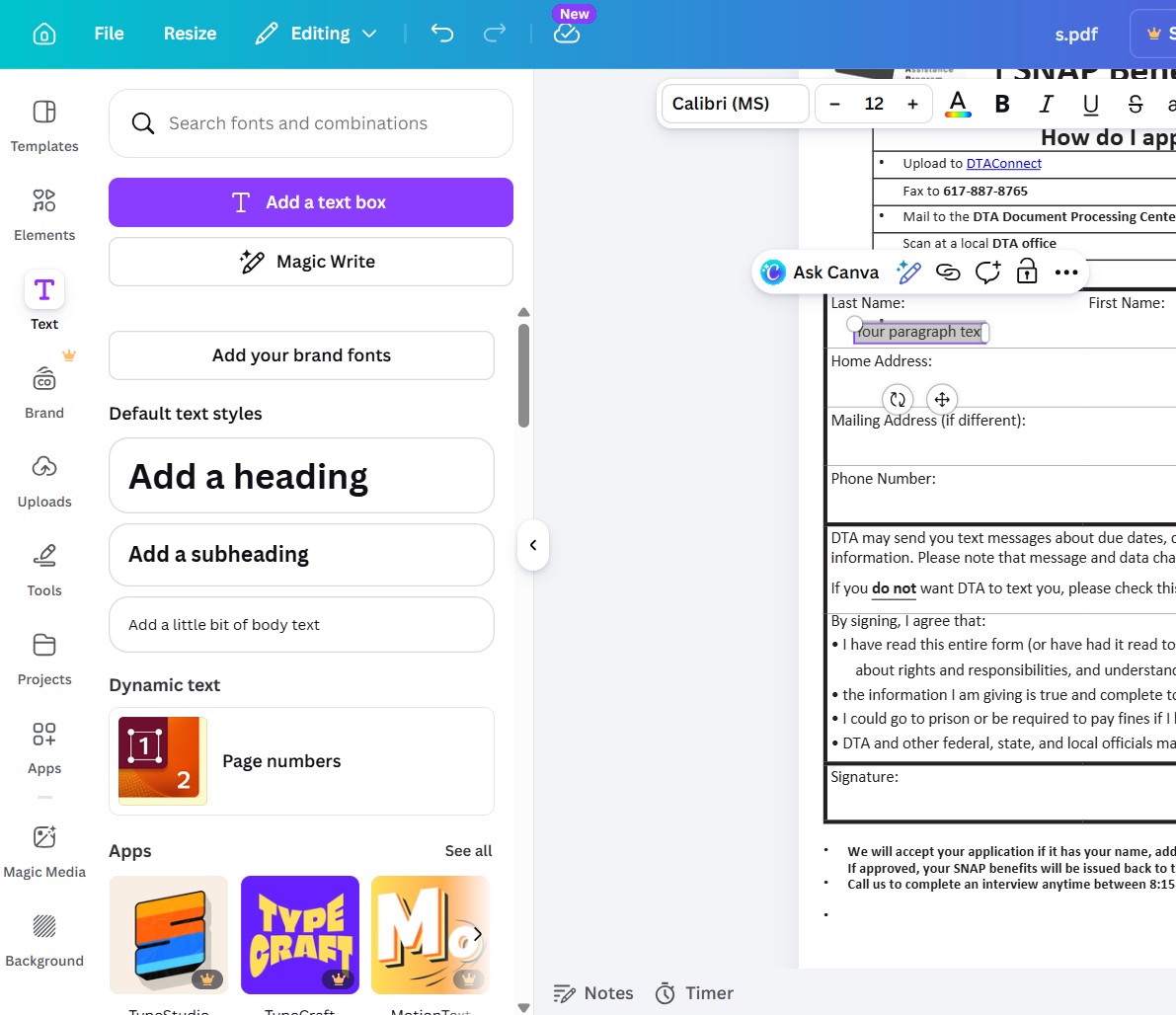
Canva does not recognize the PDF fields defined by Adobe. If your goal is to simply fill out a PDF form, I would not recommend Canva's PDF editor, since you will need to place and center fields yourself. The best use case for Canva for PDFs would be quick edits due to its speed. Canva does not offer enough features for more complex PDF editing, such as password protection and adding/naming fields.
Offers basic field filling, insertion of new text, and insertion of limited form fields such as text and checkboxes. Has an online version with no download required.
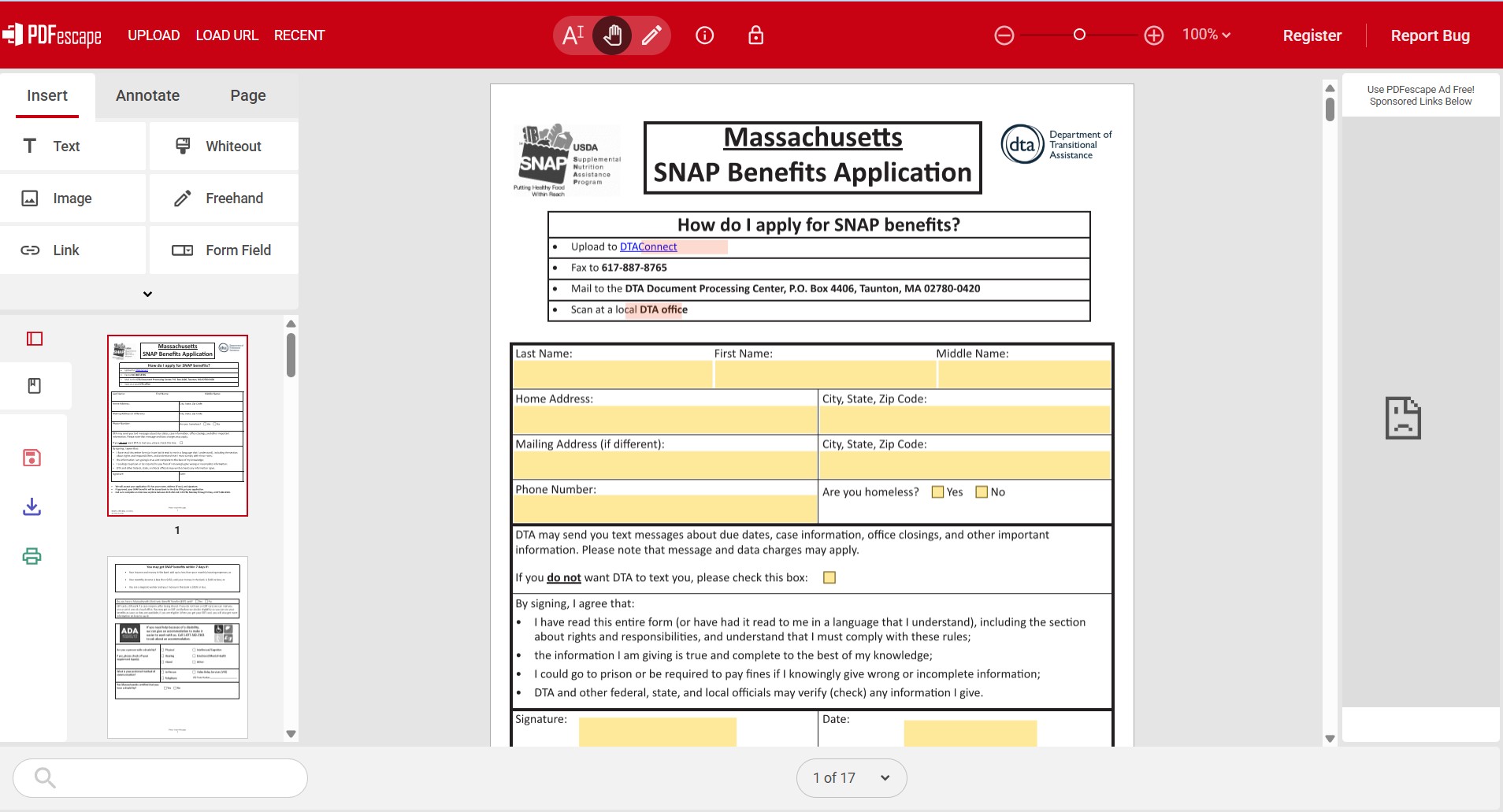
The website is possibly the slowest I've tried, and is covered with advertisements. In the above image, I have an ad blocker, but ads would appear on the righthand side of the editor otherwise. PDFEscape also does not seem to have any support for signatures – adding a signature to existing signature fields is not possible. Adding a new signature field is also not possible. PDFEscape's website also looks slightly suspicious.
Appears to have simple, fast field editing for PDFs and support for basic edits like text fields, signature fields, and checkboxes. Available on the web, no software download required.
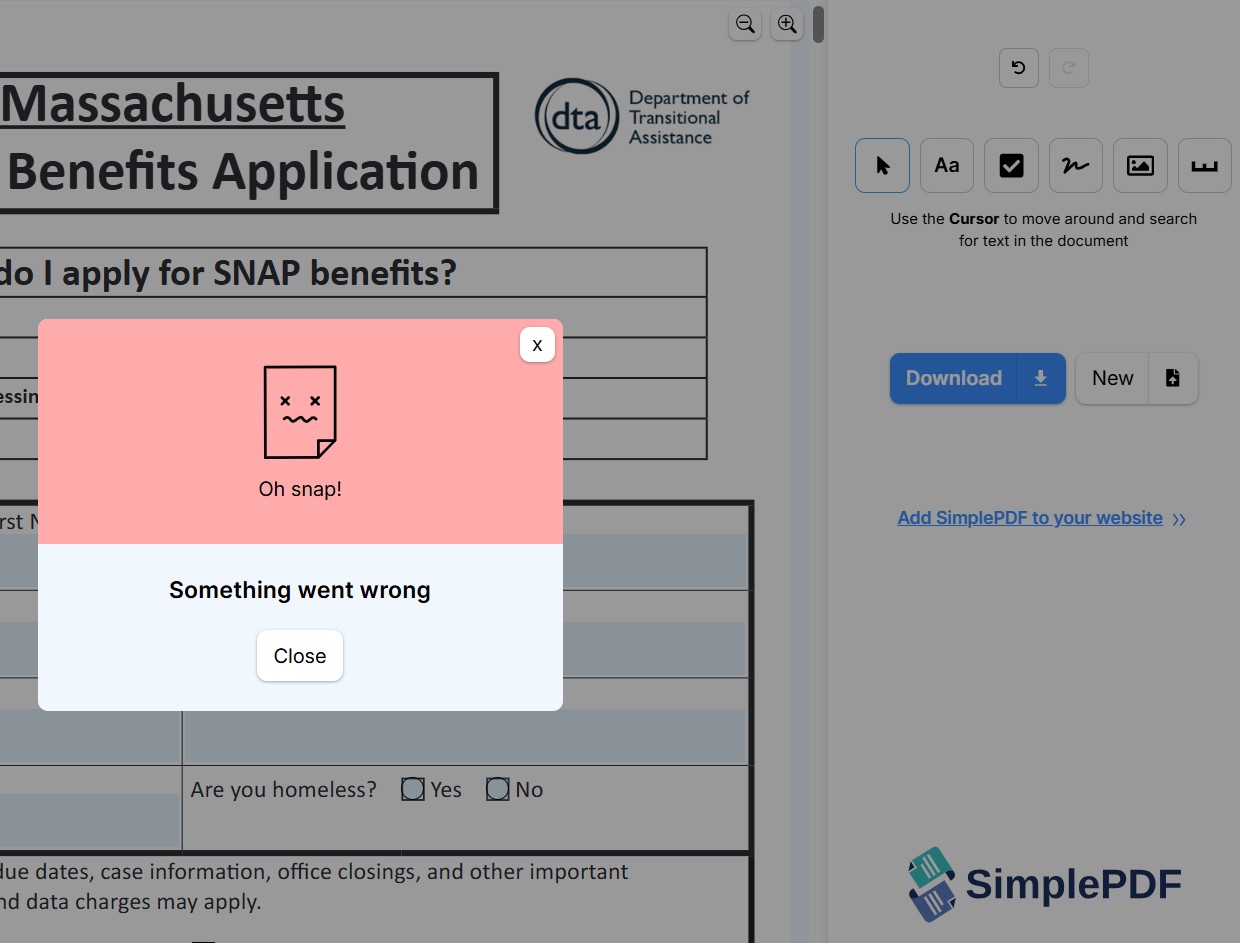
Every time I edited my PDF and tried to download it, the site crashed. Literally single time regardless of PDF or edit type. The site's editing functionality is also not well-thought, as when you try to add text, it is consistently too small, and doesn't seem to have the context of the PDF's existing text size. I also found it to be too basic for most PDF editing needs.
Need to fill out a PDF form fast? Try EasyFill — free for some benefits applications, $1 to upload any PDF.
Try EasyFill →